How To Revive Your PC With A Linux OS 🖥️

Bilal A.
Posted on January 24th, 2025
Have you ever wondered if an old PC gathering dust could still be useful? Many of us discard outdated computers, thinking they’re no longer worth saving, but what if you could give them a second life? Perhaps you're also tired of proprietary operating systems and want the freedom and flexibility of open-source software. By installing a Linux operating system, you can breathe new life into your machine, transforming it into a reliable and secure tool for daily use. Linux offers a wealth of choices, allowing you to customize your experience and adapt your system to your needs. Whether you’re a tech enthusiast or simply curious, this guide will show you how to revive your PC with ease. Get ready to unleash the potential of your old hardware!
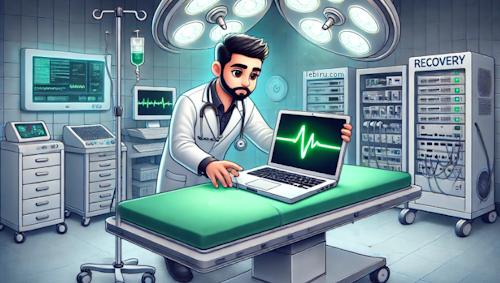
Let's give your laptop a Second Wind!
Primer on Booting a PC
PCs are versatile machines capable of booting various operating systems. Think of operating systems like the foundation upon which applications are built. Unlike regular apps, operating systems interact closely with the hardware to manage resources and run programs.
While Windows and macOS dominate the market, there are plenty of other operating systems available. Among these alternatives is Linux, an open-source powerhouse with a thriving ecosystem of distributions.
Enter Linux OS
Linux was created in 1991 by Linus Torvalds as a free and open-source alternative to proprietary operating systems. What started as a small project grew into a global phenomenon, with developers and enthusiasts contributing to its success.
Today, there are over 600 Linux distributions, each tailored to specific needs and preferences. Linux is celebrated for its open-source nature, robust security, and unparalleled customization. Whether you're a beginner or an advanced user, there's a Linux distribution for you.
Let’s Revive Your PC
To bring your old PC back to life with Linux, you'll need a few essentials:
- A computer to be revived
- A USB flash drive with at least 4 Gigabytes of free space
- An internet connection (Ethernet is preferred but Wi-Fi works too)
Pre-Steps: Back up all your data and confirm your PC is free of hardware issues.
Tap on a Linux Distribution
Awaiting User Selection...
Ubuntu Installation Guide
1. Download the ISO File
- Visit the official Ubuntu website.
- Select the version of Ubuntu you want to install (e.g., Ubuntu Desktop for general use).
- Choose the architecture suitable for your computer (e.g., 64-bit for most modern PCs).
- Click the download button and save the ISO file to an accessible folder on your current computer.
2. Create a Bootable USB Drive using Etcher
- Download and install Balena Etcher on your current computer.
- Insert a USB flash drive (at least 4GB or larger) into your computer.
- Open Etcher and:
- Select the Ubuntu ISO file you downloaded.
- Choose your USB drive as the target device.
- Click "Flash" to start creating the bootable USB.
- Once completed, safely eject the USB drive.
3. Boot From the USB Drive
- Restart your computer and access the Boot Menu. Common keys to access it are
F12,Esc,F2, orDelete(this varies by manufacturer). - In the Boot Menu, select your USB drive as the boot device.
- Save the changes (if needed) and exit the BIOS or Boot Menu. Your computer will boot into the Ubuntu USB.
4. Explore the Live Environment
- When the Ubuntu installer loads, you’ll have the option to "Try Ubuntu" without installing it.
- Select "Try Ubuntu" to explore the live environment.
- Test hardware compatibility (e.g., Wi-Fi, audio, and display) to ensure everything works properly before installing.
5. Start the Installation
- When you're ready, double-click the "Install Ubuntu" icon on the desktop.
- Select your preferred language and click "Continue."
6. Configure Settings
- Keyboard Layout:
- Choose your keyboard layout or let Ubuntu detect it automatically.
- Test typing in the provided box to ensure it's correct.
- Updates and Other Software:
- Select whether to install third-party software (e.g., for graphics and Wi-Fi hardware).
- Choose "Normal Installation" (recommended) or "Minimal Installation" for a lightweight setup.
- Installation Type:
- For beginners, choose "Erase disk and install Ubuntu" (this will delete all existing data on the drive).
- Advanced users can manually partition the drive.
- Location: Select your time zone by clicking on the map or typing your city.
- User Account:
- Enter your name, choose a username, and set a strong password.
- Decide if you want Ubuntu to log in automatically or require a password.
7. Install and Finalize
- Review your selections and click "Install Now."
- Wait for the installation process to complete. This may take 10-30 minutes depending on your system.
- Once done, remove the USB drive when prompted and click "Restart Now."
- After rebooting, your computer will load into Ubuntu.
8. Post-Installation Setup
- Update the System:
sudo apt update && sudo apt upgrade -y
- Install Additional Software:
- Use the Ubuntu Software Center to browse and install applications.
- Alternatively, use the terminal for package installation (e.g.,
sudo apt install <package-name>).
- Configure Settings: Set up your preferred system settings (e.g., display resolution, power management, and keyboard shortcuts).
- Explore: Familiarize yourself with the Ubuntu desktop environment, and enjoy your new Linux system!
Linux Mint Installation Guide
1. Download the ISO File
- Visit the official Linux Mint website.
- Select the edition of Linux Mint that suits your preferences:
- Cinnamon – A modern and feature-rich desktop environment.
- MATE – A lightweight and traditional desktop environment.
- Xfce – The most lightweight option, ideal for older hardware.
- Choose the appropriate architecture for your system (e.g., 64-bit for most modern PCs).
- Click the download button and save the ISO file to an easily accessible folder on your current computer.
2. Create a Bootable USB Drive using Etcher
- Download and install Balena Etcher.
- Insert a USB flash drive with at least 4GB of free space into your computer.
- Open Etcher and:
- Click "Select Image" and choose the Linux Mint ISO file you downloaded.
- Select your USB flash drive as the target device.
- Click "Flash" to create the bootable USB drive.
- Wait for the flashing process to complete, then safely eject the USB drive.
3. Boot From the USB Drive
- Restart your computer and access the Boot Menu. Common keys for this include
F12,Esc,F2, orDelete(depending on your system). - Select your USB drive from the Boot Menu and press Enter.
- Your computer will boot into the Linux Mint installation environment.
4. Explore the Live Environment
- Choose the "Start Linux Mint" option from the boot menu.
- Linux Mint will load a live environment that allows you to try the system without installing it.
- Test your hardware (e.g., Wi-Fi, sound, and display) to ensure everything works as expected.
5. Start the Installation
- Double-click the "Install Linux Mint" icon on the desktop to start the installation process.
- Select your preferred language and click "Continue."
6. Configure Settings
- Keyboard Layout:
- Select your keyboard layout or let Linux Mint detect it automatically.
- Type in the test field to ensure the layout is correct.
- Updates and Other Software:
- Choose whether to install third-party software (e.g., for graphics drivers and multimedia codecs).
- Select "Normal Installation" for a full-featured setup or "Minimal Installation" for a lightweight environment.
- Installation Type:
- Select "Erase disk and install Linux Mint" for a clean installation (this will delete all existing data).
- Advanced users can select "Something else" to manually partition their disk.
- Location:
- Select your time zone by clicking on the map or typing your city name.
- User Account:
- Enter your name, choose a username, and set a strong password.
- Decide whether to log in automatically or require a password on boot.
7. Install and Finalize
- Click "Install Now" to begin the installation process.
- Linux Mint will copy files and install the operating system, which may take 10-30 minutes.
- When prompted, remove the USB drive and click "Restart Now."
- After rebooting, your system will load into the new Linux Mint installation.
8. Post-Installation Setup
- Update the System:
sudo apt update && sudo apt upgrade -y
- Install Additional Software:
- Use the Software Manager to install applications you need.
- Alternatively, use the terminal for package installation (e.g.,
sudo apt install <package-name>).
- Configure Settings:
- Customize your desktop environment, including themes, icons, and wallpaper.
- Set up power management and other system preferences.
- Explore: Familiarize yourself with Linux Mint and enjoy your new system!
Fedora Installation Guide
1. Download the ISO File
- Visit the official Fedora website.
- Choose the edition of Fedora you want to install:
- Fedora Workstation – Best for desktops and laptops.
- Fedora Server – Ideal for servers.
- Fedora IoT – For embedded devices and IoT environments.
- Download the ISO file for your system architecture (e.g., 64-bit for most modern systems).
- Save the ISO file to an easily accessible folder on your computer.
2. Create a Bootable USB Drive using Etcher
- Download and install Balena Etcher on your current computer.
- Insert a USB flash drive (at least 4GB) into your computer.
- Open Etcher and:
- Click "Select Image" and choose the Fedora ISO file you downloaded.
- Select your USB flash drive as the target device.
- Click "Flash" to create the bootable USB drive.
- Wait for the process to complete, then safely eject the USB drive.
3. Boot From the USB Drive
- Restart your computer and access the Boot Menu. Common keys for this include
F12,Esc, orDelete. - Select your USB drive from the Boot Menu and press Enter.
- Your computer will boot into the Fedora installation environment.
4. Explore the Live Environment
- Select "Start Fedora Workstation" (or the appropriate option for your edition).
- The live environment will load, allowing you to try Fedora without installing it.
- Test your hardware compatibility, such as Wi-Fi, sound, and display functionality.
5. Start the Installation
- Double-click the "Install to Hard Drive" icon on the desktop.
- Select your preferred language and click "Continue."
6. Configure Settings
- Keyboard Layout:
- Choose your keyboard layout or let Fedora detect it automatically.
- Test by typing in the provided test field to ensure it works correctly.
- Installation Destination:
- Select the disk where Fedora should be installed.
- Choose "Automatic Partitioning" for beginners or "Custom Partitioning" for advanced users.
- Time and Date:
- Set your time zone by clicking on the map or selecting from the dropdown menu.
- User Account:
- Create a root password and a regular user account with a strong password.
- Check the option to make the user an administrator, if needed.
7. Install and Finalize
- Click "Begin Installation" to start the process.
- Fedora will copy files and configure the system. This may take 15-30 minutes.
- Once the installation is complete, remove the USB drive and click "Reboot" to restart your computer.
- Fedora will load for the first time after rebooting.
8. Post-Installation Setup
- Update the System:
sudo dnf update -y
- Install Additional Software:
- Use the "Software" application to browse and install applications.
- Alternatively, use the terminal for package installation:
sudo dnf install <package-name>
- Configure System Settings:
- Set up display preferences, power management, and other system options.
- Explore Fedora:
- Get familiar with the GNOME desktop environment and its features.
- Enjoy the flexibility and power of Fedora!
Zorin OS Installation Guide
1. Download the ISO File
- Visit the official Zorin OS website.
- Select the version of Zorin OS you want to install:
- Zorin OS Core – The standard version with essential features.
- Zorin OS Pro – A premium version with extra applications and layouts (paid).
- Zorin OS Lite – A lightweight version for older computers.
- Click "Download" and save the ISO file to an easily accessible folder on your computer.
2. Create a Bootable USB Drive using Etcher
- Download and install Balena Etcher.
- Insert a USB flash drive (at least 4GB or larger) into your computer.
- Open Etcher and:
- Click "Select Image" and choose the Zorin OS ISO file you downloaded.
- Select your USB flash drive as the target device.
- Click "Flash" to create the bootable USB drive.
- Wait for the process to complete, then safely eject the USB drive.
3. Boot From the USB Drive
- Restart your computer and access the Boot Menu. Common keys for this include
F12,Esc, orDelete. - In the Boot Menu, select your USB drive as the boot device and press Enter.
- Your computer will boot into the Zorin OS installation environment.
4. Explore the Live Environment
- When the Zorin OS installer loads, select "Try Zorin OS" to explore the live environment.
- The live environment allows you to use Zorin OS without installing it, giving you the opportunity to test hardware compatibility (e.g., Wi-Fi, sound, and display).
- Verify that your system works well with Zorin OS before proceeding with the installation.
5. Start the Installation
- Double-click the "Install Zorin OS" icon on the desktop to start the installation process.
- Select your preferred language and click "Continue."
6. Configure Settings
- Keyboard Layout:
- Select your keyboard layout or let Zorin OS detect it automatically.
- Type in the test field to ensure the layout is correct.
- Updates and Other Software:
- Choose whether to install third-party software (e.g., for graphics drivers and multimedia codecs).
- Select "Normal Installation" for a full-featured setup or "Minimal Installation" for a lightweight environment.
- Installation Type:
- Select "Erase disk and install Zorin OS" for a clean installation (this will delete all existing data).
- Advanced users can select "Something else" to manually partition their disk.
- Location:
- Set your time zone by clicking on the map or selecting your city from the list.
- User Account:
- Enter your name, create a username, and set a strong password.
- Decide whether to enable automatic login or require a password to log in.
7. Install and Finalize
- Click "Install Now" to begin the installation process.
- Wait while Zorin OS copies files and configures the system. This may take 15-30 minutes.
- When the installation is complete, remove the USB drive and click "Restart Now."
- After rebooting, your computer will boot into your new Zorin OS installation.
8. Post-Installation Setup
- Update the System:
sudo apt update && sudo apt upgrade -y
- Install Additional Software:
- Use the Zorin OS Software Store to browse and install applications.
- Alternatively, use the terminal for package installation:
sudo apt install <package-name>
- Configure Settings:
- Customize your desktop environment, including themes, icons, and layouts.
- Set up power management and system preferences to your liking.
- Explore Zorin OS:
- Familiarize yourself with Zorin OS and its user-friendly features.
- Enjoy the flexibility and performance of your new operating system!
Congratulations! You are now a Linux user! 🐧 Explore your new operating system, try out its features, and enjoy the flexibility and performance it brings to your PC.
Let’s Wrap It Up
Reviving your PC with a Linux OS is a relatively simple process. By following these steps and referring to the official guides for your chosen distribution, you can breathe new life into any old computer. Welcome to the world of Linux!